
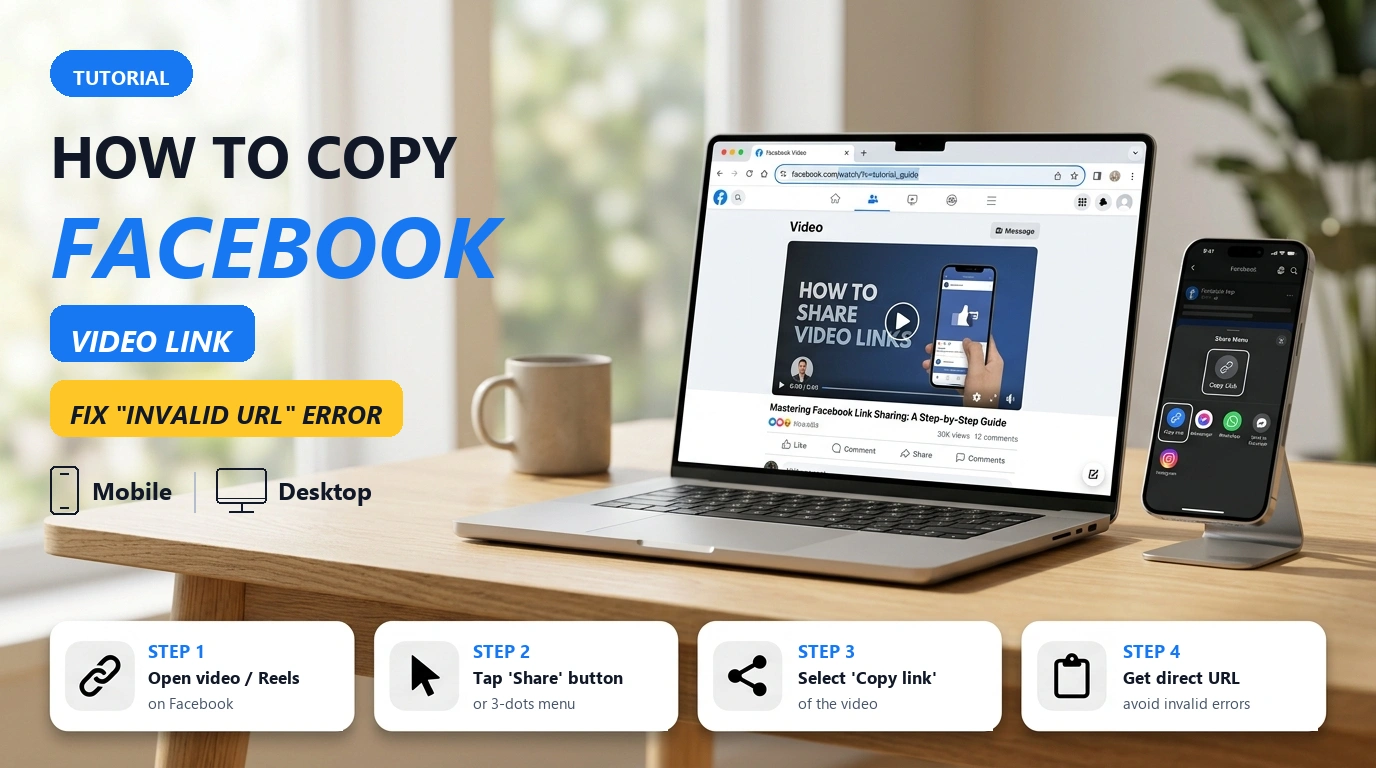
How to Copy Facebook Video Links Correctly (Mobile, Desktop, Reels, Private Groups)
Learn how to copy the exact direct Facebook video URL on iPhone, Android, and PC to permanently avoid 'Invalid URL' errors when downloading.
Download Facebook videos online in Full HD, 1080p, and 4K MP4 with full audio. Fast, free, and no login required.
Open Facebook, find the video or Watch clip you want to save, tap the Share icon (or three dots), and select "Copy Link".
Paste the copied Facebook link into the search box above and click the "Download" button.
Choose your desired resolution (1080p Full HD, 720p, or MP3 audio) and click Download to save the file to your device.
GetFVid is a high-speed online Facebook video downloader designed to help you save Facebook videos in crisp 1080p Full HD, 2K, and 4K MP4. Whether it's a helpful tutorial, music clip, viral post, or Facebook Watch video, GetFVid fetches direct download links straight from Facebook's servers with zero quality loss.
A common issue with other downloaders is that high-definition 1080p videos often download without sound. GetFVid automatically merges high-resolution video streams with their original audio tracks, ensuring your saved MP4 files have crystal-clear visuals and synchronized sound.
No software installation, browser plugins, or account logins are required. Simply paste your link, pick your preferred resolution or MP3 format, and download directly to your PC, iPhone, or Android device.
GetFVid supports virtually all publicly available video content on Facebook:
Looking specifically for short-form vertical clips? Use our dedicated Facebook Reels Downloader.
Need to download videos from closed groups or private profiles you have access to? Check out our Private Facebook Video Downloader.
When videos are uploaded to Facebook, Facebook's video engine compresses and prepares various resolutions. GetFVid identifies all available stream qualities so you can select the best format for your needs:
You don't need any third-party apps or jailbreaks to save Facebook videos on mobile devices:
On iPhone and iPad (iOS): Open the Facebook app, find the video, tap Share > Copy Link. Open Safari, go to GetFVid, paste the link, and tap Download. Safari will display a download prompt. Tap Download, then open the Files app > Downloads, select your video, tap the Share icon, and choose Save Video to move it into your Photos app (Camera Roll).
On Android: Copy the video link from the Facebook app, open Chrome or your preferred browser, paste the link into GetFVid, and tap Download. The video will save immediately into your phone's Downloads folder and appear in your Gallery app.
Yes! Many tools fail to capture audio on 1080p and higher resolutions because Facebook splits video and audio tracks. GetFVid automatically merges high-definition video with its corresponding audio track, giving you a complete MP4 with crisp sound.
Yes. When you paste a Facebook video link into GetFVid, you will see an 'Audio Only / MP3' download option in the result list, allowing you to extract audio without downloading the full video.
Yes, GetFVid is 100% free with unlimited downloads. There are no subscriptions, hidden fees, or daily download limits.
Yes. GetFVid fully supports public Facebook Watch videos and feed posts. For dedicated short-form Reels, you can also use our specialized Facebook Reels Downloader.
This tool is optimized for public videos. If you need to save videos from private profiles or closed groups you belong to, please use our dedicated Private Facebook Video Downloader.
On Windows and Mac, files are saved in your default 'Downloads' folder. On Android, check your Downloads folder or Gallery. On iPhone/iPad, downloads appear in Safari's download manager and the Files app.
Some mobile browsers stream MP4 videos directly by default. If this happens, tap and hold (or right-click on desktop) the download button and choose 'Save link as' or 'Download linked file'.
Yes, GetFVid is completely safe. We do not require account logins, we do not store your personal information or download history, and all connections are secured via HTTPS encryption.
Learn how to copy the exact direct Facebook video URL on iPhone, Android, and PC to permanently avoid 'Invalid URL' errors when downloading.
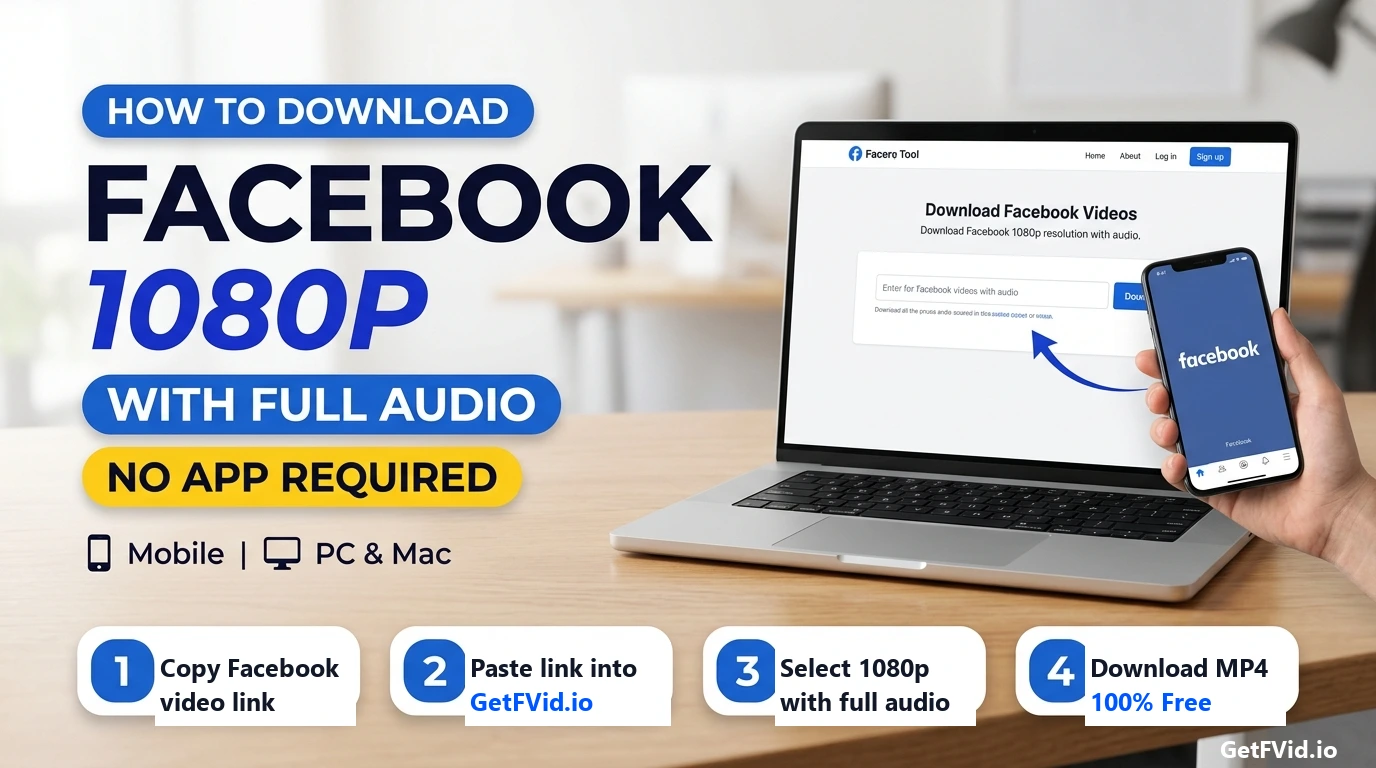
Learn why downloading Facebook videos in 1080p or 4K results in silent files due to Meta's DASH streaming technology, and how GetFVid automatically merges audio.
Are Facebook video downloaders safe to use? Learn the difference between web tools and apps, privacy precautions, and copyright rules.